If your chart feels like it’s running a marathon in flip-flops, we need to talk.
Highcharts is incredibly powerful. It can render trading platforms, telemetry dashboards, analytics tools, and data-heavy enterprise apps without breaking a sweat.
But if you throw 300,000 points at it, enable shared tooltips, animate everything, and run five setData() calls per second… even the best library will start questioning your life choices.
In this guide, we’re diving deep into how Highcharts performance actually works, what slows it down, and how to keep it fast even under serious load.
The 4 Stages of the Highcharts Performance Pipeline
Highcharts performance isn’t one single thing. It’s a sequence of events that happens every time you initialize a chart or update its data.
- Data Ingestion: Processing the raw data (CPU)
- Layout Calculations: Determining where everything goes (CPU)
- Rendering: Drawing the pixels (SVG or WebGL)
- Interactivity: Handling user input (CPU + GPU)
1. Data Ingestion: The Hidden CPU Cost
Before a single line is drawn, Highcharts has to transform your series.data into its own internal structures. This is where many developers accidentally kill their performance before the chart even starts rendering.
If you pass a simple array like: data: [1, 2, 3], it’s incredibly cheap. But if you pass 200,000 points as complex objects:
data: [{ x: 1, y: 10, color: '#ff0000', custom: { ... } }]
Highcharts has to “inspect” every single object. For a massive dataset, that’s a massive CPU bill. Stick to simple arrays where possible to avoid overloading the browser’s computing power.
The Next Evolution: Highcharts v13:
In the upcoming v13 of Highcharts, we will take this even further and allow TypedArrays through the new dataTable option. Tests show a 20% performance gain.
2. Layout: It’s Not Just the Points
Many people assume that if their points are simple, the chart will be fast. Not necessarily. Even with fast data, the CPU still has to do the heavy lifting of the “Geometry Engine.” Highcharts has to calculate:
- Axis extremes and tick positions
- Collision detection for labels (so they don’t overlap)
- Legend placement and tooltip positioning
Sometimes your chart isn’t slow because of 100k points—it’s slow because you have 8 different axes, 12 series, and heavy label.formatter functions. If you find your chart renders fine but “feels” heavy during window resizing, your layout is likely the culprit.
3. Rendering: SVG vs Boost (WebGL)
By default, Highcharts renders in SVG (Scalable Vector Graphics). SVG is precise, beautiful, and easy to inspect, but it’s “DOM-heavy.” Every point or line is an element in the browser’s DOM. Browsers generally don’t love managing hundreds of thousands of DOM nodes. For these cases, we have:

An example of slow and fast performance with and without the Boost module
The Boost Module
It’s the performance “escape hatch.” When enabled, it bypasses the standard SVG rendering and uses WebGL to draw directly to a canvas.
| SVG Rendering | Boost (WebGL) Rendering | |
| Best for | Standard dashboards, < 5k points. | Big Data, > 5k to 1M points. |
| Pros | High precision, CSS styling, full features. | Insane speed, handles millions of points. |
| Cons | Slows down with high point counts. | Sacrifices some advanced visual features. |
You control this with boostThreshold and boost.seriesThreshold. If your series exceeds this number, Highcharts automatically switches to WebGL. It’s fast, but remember: it’s not magic. Some tooltip behaviors and markers may behave differently.
4. Interactivity: Where Charts “Feel” Slow
This is the classic scenario: The chart renders instantly, but as soon as you move your mouse, the whole page stutters. Why? Because interactivity logic is a hot loop. When you move your mouse, Highcharts has to constantly calculate which point you are hovering over, or which point or series is closest to the mouse cursor.
If you have a shared tooltip across 20 series or a complex formatter() function that runs some heavy logic, you are asking the CPU to do that work dozens of times per second.
Other factors that can heavily impact performance:
- Additional event listeners
- Custom logic on mouseOver events (especially if it runs frequently)
- Custom logic triggered during
chart.redraw(particularly if the redraw occurs often) - Heavy formatters (complex math calculations in your tooltip or label formatters )
- Crosshair sync (synchronizing crosshairs across 5 different charts can multiply the interaction cost)
- Frequent update (if you are receiving data from a WebSocket, don’t call setData() every time. Batch your updates.)
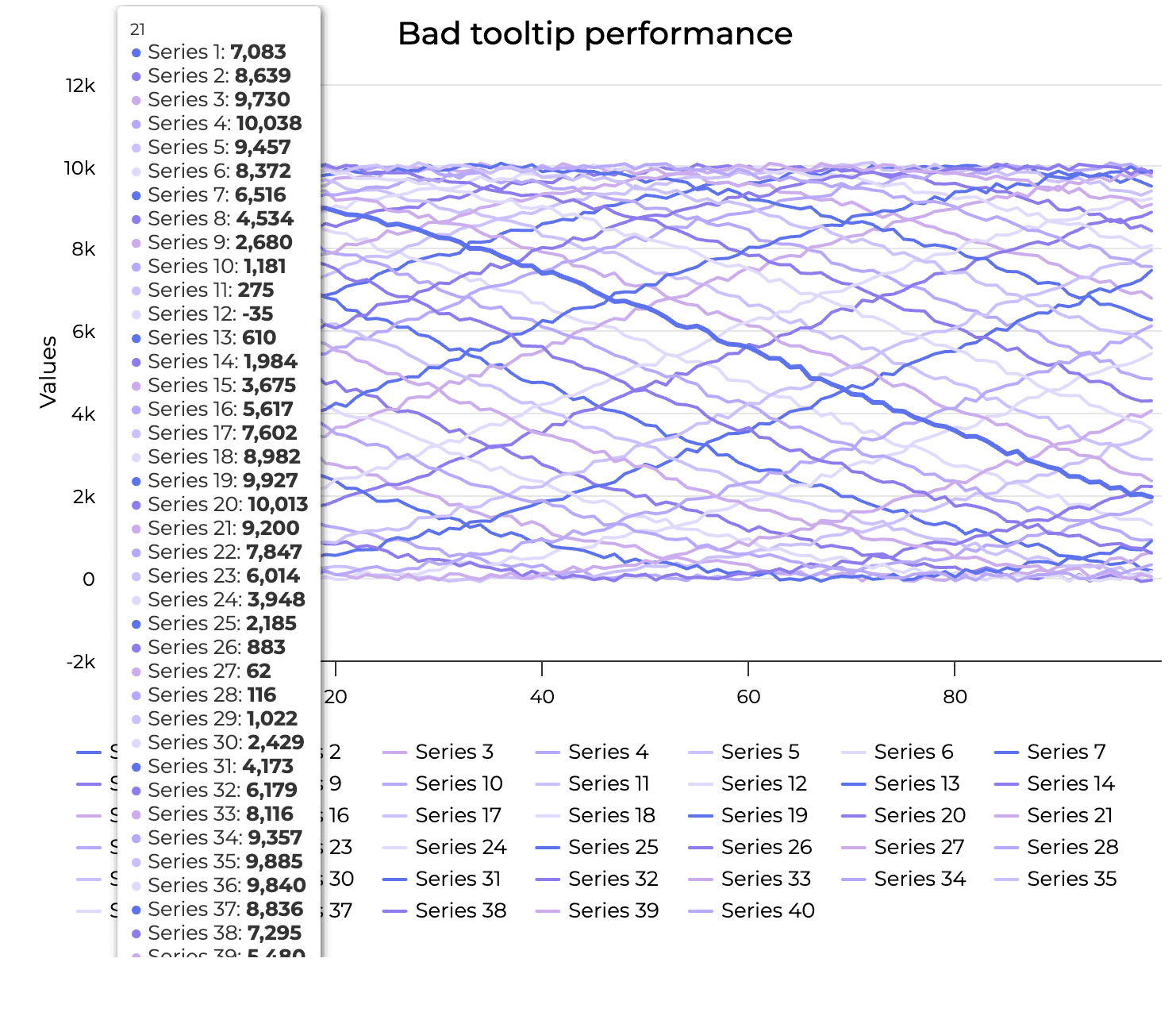
Bad tooltip readability and performance

Improved tooltip readability and performance
Highcharts Performance: 10 Tweaks That Actually Matter
We’ve already covered the 4 stages of the Highcharts performance pipeline. Now let’s look at the 10 specific “knobs” that (based on my experience) are behind 90% of performance issues in Highcharts.
1. Master the Boost Module (and its Sacrifices)
The Boost module is your most powerful weapon against high point counts. By switching from SVG to WebGL, you move the rendering burden from the DOM to the GPU.
Use it when a column chart exceeds 5,000 data points. The threshold differs for line and scatter charts, as these series types are simpler and generally more performant, allowing them to handle larger datasets more efficiently.
But keep in mind the tradeoff: Boost is built for speed, not “flair.” You might notice that animations are no longer on the chart, or that certain SVG-only features (like different marker shapes) are disabled. Use it intentionally, don’t just turn it on and hope for the best. For best practices, check out this Boost module guide by Highsoft.
For datasets with hundreds of thousands of points, optimizing turboThreshold is essential. By ensuring your data uses simple arrays rather than objects, you bypass heavy processing overhead. Combining the Boost module with an appropriate turbo setting typically yields a 25–30% improvement in rendering speed over using Boost alone, ensuring a much snappier experience for ultra-high-density charts.
2. Keep Data Structures “Flat”
As we discussed at the beginning, the CPU hates complexity. If you pass 100,000 points as objects – each with its own color, ID, and custom metadata – Highcharts has to index every single one.
Use:
- Simple one-level numeric arrays (e.g.,
[1, 2, 3]), where Highcharts automatically assigns the x-value based on thepointStartandpointInterval - Arrays of arrays (e.g.,
[[1, 10], [2, 12]]), where you explicitly provide both coordinates
The Next Evolution: Highcharts v13:
In the upcoming v13 of Highcharts, we will take this even further and allow TypedArrays through the new dataTable option. Tests show a 20% performance gain.
3. Simplify Tooltips for Data-Heavy Charts
The tooltip.formatter only runs for the points currently being hovered, not the entire dataset. However, it is a hot loop because it triggers every time the mouse moves. If you have a chart with 50,000 points and a tooltip that triggers on every hover, any complex logic or heavy HTML generation inside that formatter will cause immediate lag.
For massive datasets, stick to simple string templates (pointFormat) or tooltip.format , rather than logic-heavy JavaScript functions. If you must use a formatter, keep the calculations outside the function and only use it for display.
You might also consider using a fixed position for the tooltip (e.g., in a corner of the chart) rather than having it follow the cursor. This prevents the browser from having to recalculate the tooltip’s coordinates and repaint its position every time the mouse shifts even a single pixel.
4. Disable Animations
Animations are visually pleasing, but they come at a performance cost. Each animation frame requires the browser to recalculate positions and rerender elements.
When performance is a priority, set animation: false in your plotOptions and chart settings. You can always re-enable them selectively for smaller series or specific transitions once you’ve confirmed the base chart is running smoothly.
5. Control the “Redraw Flag”
One of the most common mistakes is calling series.setData() or point.update() inside a loop with the redraw flag set to true. This tells the chart to recalculate the entire layout for every change to a single point.
Always set the redraw argument to false during batch updates. Once all your data changes are finished, call chart.redraw() exactly once. This minimizes layout “thrashing” and keeps the UI responsive.
It’s easy to overlook this because, in almost all Highcharts methods, the redraw parameter is optional. If you don’t pass it, it defaults to true. This means every single data update will trigger a full rendering cycle unless you explicitly tell it not to.
6. Leverage Data Grouping (Highcharts Stock)
If you’re using Highcharts Stock, you have access to a “superpower” called Data Grouping. It essentially acts as an automated downsampler.
- How it works: Instead of drawing every single tick in a 5-year dataset, it groups points into representative values based on the pixel width of the chart.
- Beyond Average and Sum: While average and sum are common, Highcharts offers several built-in options, such as
open,high,low, andclose(crucial for financial data). - Custom Approximation: If the standard math doesn’t fit your needs, you can define a custom approximation function. This allows you to implement your own logic – like picking the median or a weighted value – ensuring the “grouped” data accurately represents the underlying trends of your specific dataset.
- The Big Trade-off: Note that you cannot use Data Grouping and the Boost module at the same time. Since Boost renders everything as raw pixels to a canvas, it bypasses the logic required for grouping. You’ll need to decide if you want the raw throughput of Boost or the intelligent downsampling of Data Grouping.
This doesn’t just make the chart faster, it makes it readable. You can’t see 100,000 individual points on a 1920px screen anyway – grouping gives the user the “shape” of the data without the overhead.
7. Pre-Process Data Before Ingestion
The best way to handle 1,000,000 points is not to send 1,000,000 points to the chart in the first place. If your data is too dense, use a simple sampling algorithm on the server or in a Web Worker before passing it to Highcharts. By reducing noise before the rendering stage begins, you ensure the visualization is both cleaner for the user and lighter for the browser.
However, if you need to maintain the ability to zoom into granular details without overloading the initial page load, Lazy Loading is your best friend. Instead of loading the entire multi-year dataset at once, you only load the data required for the current view. As the user zooms or scrolls, the chart makes a new request to the server to fetch the specific high-resolution data for that range. This keeps the initial payload small and the chart snappier, as it processes only a fraction of the total dataset at any given time.
8. Set tickPositions and/or axis extremes manually
Highcharts is very “smart” by default – it constantly calculates the most aesthetic way to place ticks and labels so they don’t overlap. However, this intelligence has a cost. Every time the chart scales, the engine runs complex algorithms to find the perfect intervals. By manually defining tickPositions or setting fixed min and max axis extremes, you effectively “give the engine a map.” You bypass the need for these expensive calculations, which is especially beneficial when dealing with multiple axes or charts that resize frequently.
9. Disable liveRedraw in stock charts
In Highcharts Stock, the scrollbar.liveRedraw feature is enabled to provide a smooth, continuous update as you slide the navigator or scrollbar. While this looks great on small datasets, it forces the entire chart to re-render dozens of times per second during a scroll event.
For data-heavy dashboards, this can lead to significant stuttering. By setting liveRedraw: false, the chart will update only when the user releases the scrollbar. This drastically reduces the rendering load and keeps the browser responsive during navigation.
10. Stagger Initialization (Avoid the “Big Bang” Load)
If you are building a complex dashboard with multiple heavy chart instances, the biggest performance bottleneck isn’t the data—it’s the initialization. When you call Highcharts.chart() ten times in a row, the browser tries to execute all those constructor functions in a single synchronous block, locking the main thread and freezing the UI.
To keep the page responsive, you should avoid this “Big Bang” approach by staggering the work.
Using setTimeout or requestAnimationFrame lets you break initialization into smaller chunks, giving the browser a chance to “breathe” and handle user input between renders.
For even better results, you can use the Intersection Observer API to trigger a chart’s creation only when its container actually scrolls into the viewport. This strategy ensures your “Time to Interactive” remains low by spreading the CPU load over time rather than hitting it all at second zero, transforming a janky page load into a smooth, progressive experience.
Highcharts Performance Optimization: Best Practices
Here’s a summary of the most impactful optimizations. Pick the ones that match your bottleneck.
| Category | Optimization Goal | Recommended Action |
| Data Format | Minimize CPU overhead | Use simple arrays. |
| Rendering | Handle 5k+ points | Enable the Boost Module (WebGL). |
| Visibility | Reduce visual noise | Use Data Grouping for time-series. |
| Interactivity | Prevent “Hover Lag” | Simplify tooltips; disable markers on large series. |
| Updates | Avoid UI Freezes | Set redraw: false during batch updates. |
| Visuals | Save CPU cycles | Disable animations for high-frequency data. |
The Bottom Line
Performance isn’t about the library itself; it’s about the constraints of the environment. Any browser will struggle when asked to manage 300,000 DOM nodes, execute complex math on every mouse movement, and animate every transition simultaneously.
The power of Highcharts lies in its flexibility. It provides the surgical precision of SVG, the raw throughput of WebGL via the Boost module, and enterprise-grade data grouping. By architecting your data flow with these stages in mind, you can build even the most demanding dashboards while maintaining a fluid, professional experience.
Still struggling with performance?
Well, maybe it’s time for a professional audit. Let’s take a look at it together.
Contact us, and we’ll analyze your setup, identify the real bottlenecks, and map out a concrete performance strategy.
Let’s make your charts enterprise-ready.